Kendo UI for jQuery Calendar Overview
The Kendo UI for jQuery Calendar renders a graphical calendar that provides navigation and selection functionalities.
The component also supports custom templates for its Month view and configuration options for minimum and maximum dates, a start view, and the depth of the navigation. The first day of the week depends on the applied culture.
The Calendar is part of Kendo UI for jQuery, a
professional grade UI library with 110+ components for building modern and feature-rich applications. To try it out sign up for a free 30-day trial.

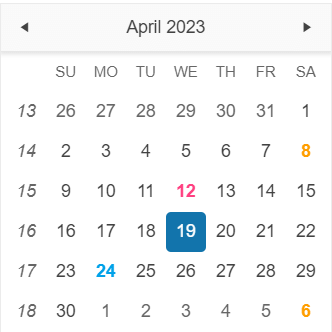
Functionality and Features
- Selected dates–You can render dates as initially selected before the Calendar is initialized.
- Disabled dates–The Calendar allows you to disable dates so that they cannot be selected by the user.
- Start date and navigation depth–The Calendar enables you to set its starting view.
- Day template–You can modify the appearance of one or more Calendar days.
- Week numbers–The Calendar also enables you to showcase the week number.
- Selection–You can also enable the user to select one or more Calendar dates.
- Accessibility–The Calendar is accessible for screen readers, supports WAI-ARIA attributes, and delivers keyboard shortcuts for faster navigation.
Next Steps
- Getting Started with the Kendo UI Calendar for jQuery
- Basic Usage of the jQuery Calendar (Demo)
- JavaScript API Reference of the Calendar